Intelex App Builder: objects, fields, relationships, views
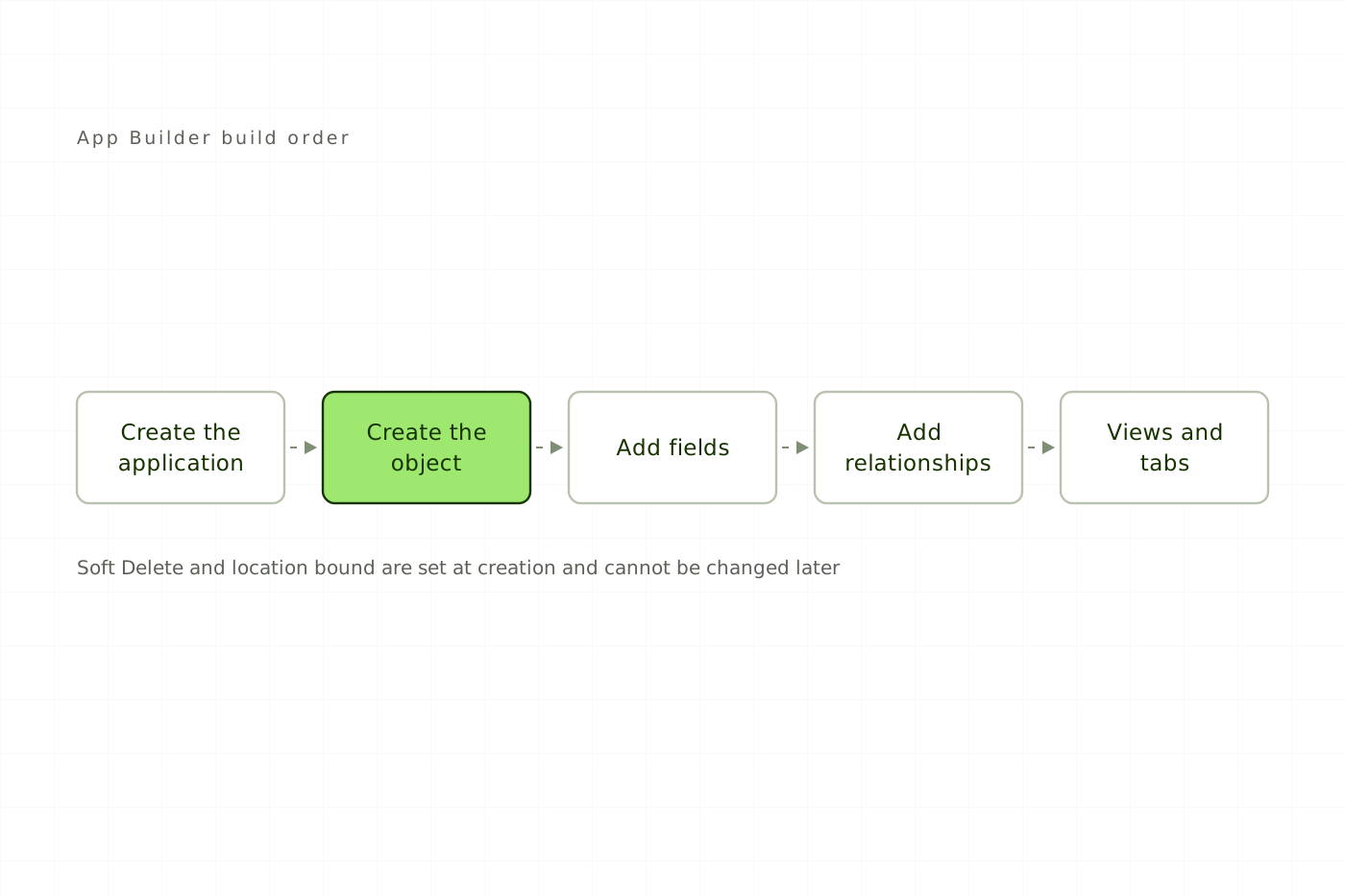
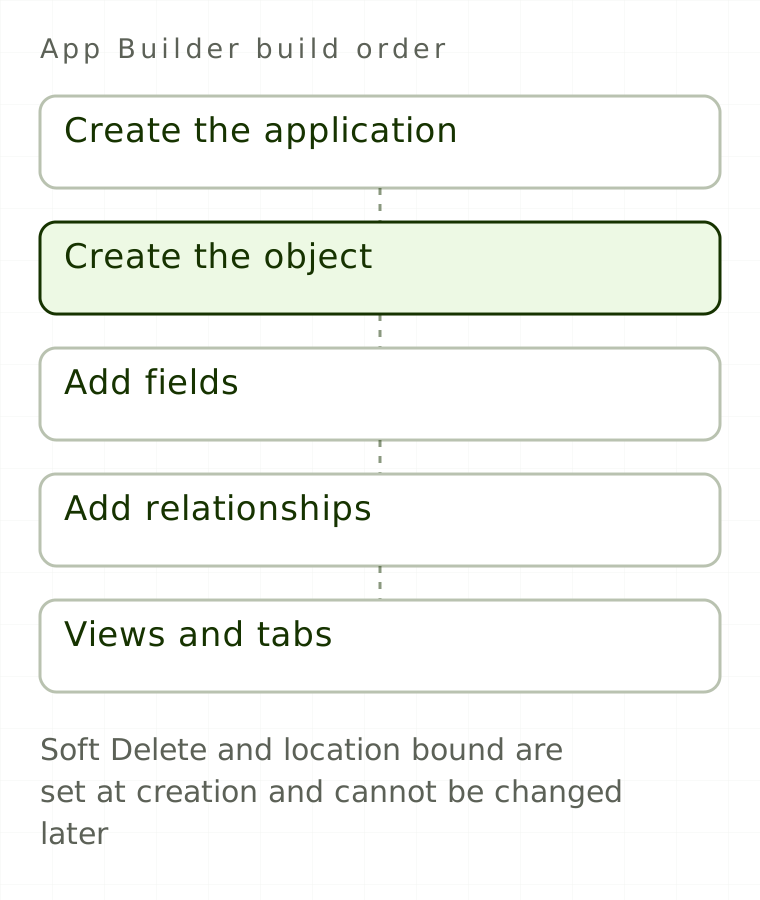
Most of the pain in an Intelex environment traces back to a handful of decisions made in the first hour of building an object. Intelex App Builder is forgiving about what you can change later and silent about what you cannot: Soft Delete and the relationship type between two objects are effectively permanent once set, and so is whether an object is location bound. Nothing on the screen tells you that at the time.
This is the data model, top to bottom, ending with one EHS entity modeled end to end.
What is an object in Intelex App Builder?
An object is a database table whose records share one field list, and everything else in App Builder hangs off it: detail and inventory views, business rules, action handlers and workflows. Only System Administrators can create objects and applications on V6. The settings that matter at creation:
- Name (system name) is auto-generated from the Caption; never type or edit it. Schema should be
netfor most objects. - Base makes the object abstract. It cannot hold records, but it can act as a parent for inheritance.
- Soft Delete must be enabled when the object is created. If you skip it, archiving and restoring records of that object becomes permanently impossible. This is the single most expensive checkbox in App Builder.
- Concurrency Type is Locking (the first editor gets the record, everyone else is blocked) or Merging (simultaneous edits merge, with a conflict notice).
- Location bound determines whether you can attach a workflow at all. Workflows can only be added to location-bound objects, so this decides whether the object can ever carry a business rule, workflow or action handler stack.
- Audit Trail is off by default, is a purchased feature, and requires object security to be enabled first. Never assume a client has change history.
Which Intelex field type should you use?
The system field types are Auto Number, Currency, Date, Date and Time, Decimal, Email, Flag (six colors), Float, Number (whole numbers only), Percent, Text, Time, URL and Yes/No.
| If you need | Use | Why |
|---|---|---|
| A quantity with a unit of measurement | Float | Number and Decimal are offered in the UI but cause precision and scale data errors with UoM |
| A whole count | Number | Number holds whole values only |
| A sequential record number | Auto Number | Starts at 1, increments by 1 by default |
| A shared picklist | Lookup Object | A local Lookup field is scoped to one object and cannot be reused |
| A visual status marker | Flag | Six colors available |
| Money | Currency | Formatting follows the user's Culture setting |
Field rules that bite later:
- Field system names must be unique across all of Intelex, not just within the object. Prefix them with an object abbreviation (
IMfor Incident Management) or you will eventually collide with another application. - Set a Max Length on every text field, even a large one. It improves save performance.
- Is Available for Reporting is on by default; turn it off to exclude a field from reports.
- Never change the Name of a Lookup Object after creation. It is the system-generated unique identifier and changing it can break the field.
- Dropdown lookup values carry a Value (used in calculations) and a Caption (displayed). Formulas filter on
.Value.
For units of measurement, the first unit added to a category becomes the default, and that default can never be changed afterwards. Conversion factors are relative to it: with a default of milliliters, a liter has a factor of 0.001.
What do the four Intelex relationship types actually do?
Every relationship in the database is one-to-many or many-to-many. The UI wording maps onto that as follows.
| UI wording | Cardinality | Behavior |
|---|---|---|
| Has a list of attached | 1:M | Basic parent-child. No cascade delete, no security inheritance |
| Contains | 1:M (master-detail) | Adds two things: security trickles down, and cascade delete applies |
| Has a drop-down of | M:1 | Reference to a single record on another object |
| References associated | M:N | Many-to-many link |
Consequences people discover too late:
- Child workflows started from a flow activity require "References associated" or "Has a list of attached". They do not work with "Contains" or with a dropdown, so if you plan to spawn a child workflow you cannot use master-detail.
- A related grid defaults to hard delete even when the related object uses soft delete. Remove the hard delete link and add the archive link yourself.
- Related objects do not inherit permissions from the parent object by default. Incident permissions do not flow into a CAPA subgrid. For inheritance the relationship must be 1:M with object security on, and you must add a permission source in the related object's Security Settings, which only affects users arriving from your application. Rights and permissions are separate mechanisms and worth reading together.
To import sub-records with their parent relationship, enable the advanced "visible from the other object" setting on the relationship field first.
Inheritance is separate again. An object can have at most one parent; multiple inheritance is not supported. Parent fields are available on the child but do not appear in the child's Fields grid and must not be redefined there. Security is configured only on the parent.
How are Intelex views built and filtered?
Detail views are edited in the Form Designer. Edit the default views, because those are used unless a tab explicitly points somewhere else. Where one view serves several workflow stages, reuse it with stage containers rather than building a view per stage; stage-specific visibility is configured only in source code.
For inventory views, the attributes worth knowing are LocationFilter (1 Active, 2 Active and Below, 3 Active and Above, 4 Active, Above and Below, 5 View All), PageSize (10/20/50/100/200/500), AllowSorting, AllowFiltering and LinkMode. Object-level location filters can only be set on parent objects, because a child object has no Location Bound field.
Other view facts that save an afternoon:
- The inventory search box supports no wildcards, logical operators or pattern matching; it does full-text search on a limited set of indexed fields. Use Advanced Filtering instead.
- Custom Inventories, meaning saved view plus filter combinations, are visible to all users, but can only be created by groups holding the "Rights Access Custom Inventory Panel" right, which then applies everywhere in Intelex.
- Mass Update can only be enabled by editing inventory or grid source code, and must point at a detail view containing only the fields to be updated.
Applications tie it together. An application needs at least one tab before it appears in the Application list, and the tab types differ: an Inventory tab shows all records, a Detail tab is how a user creates one. Then plan for the limit. Inventory view tabs display at most five visible tabs, and tabs six and up collapse into a "More" dropdown with no override, so group items under one tab with a sub-menu instead.
Worked example: modeling a contractor register end to end
There is no dedicated Contractor Management module in the Intelex application catalog, so contractor use cases are assembled from Training Management, Permit to Work, Audit Management and Supplier Management, or built custom. Assume the custom build:
- Create the application. System name
ContractorMgmt: short, unique and meaningful, because it appears in URLs and prefixes many system names. - Create the parent object. Caption "Contractor Company", Schema
net, Name left alone. Tick Soft Delete now. Set Concurrency Type to Locking if two coordinators might edit one record. Make it location bound, because the approval needs a workflow. - Enable object security, then run "Set Inheritance", before any data is loaded. Doing this after records exist is where objects start misbehaving.
- Add fields with a
CTRprefix:CTRCompanyName(Text, Max Length 120),CTRVendorNumber(Text),CTRInsuranceExpiry(Date),CTRSiteHours(Float, so it can carry an hours UoM),CTRApproved(Yes/No),CTRRiskFlag(Flag). - Add relationships. Work Type as a shared Lookup Object via "Has a drop-down of". Contractor Worker as "Has a list of attached" rather than "Contains", because "Contains" would rule out a later child workflow for qualification renewal. You give up cascade delete and security trickle-down in exchange. Incidents as "References associated", since one incident can involve several contractors.
- Build one detail view with stage containers for Draft, Review and Approved. Do not build three views.
- Add tabs: one Inventory tab ("All Contractors"), one Detail tab ("New Contractor"). Stay under five.
- Set the location filter on the parent object. Active Location and Below suits a site-managed register.
The seven settings to confirm in writing first
Before you create your next object, confirm these:
- [ ] Soft Delete decided and ticked at creation
- [ ] Location bound decided, if a workflow is ever likely
- [ ] Object security enabled and "Set Inheritance" run before data load
- [ ] Field system names prefixed and Max Length set on every text field
- [ ] Relationship type chosen against the child-workflow and cascade-delete consequences, not just the wording
- [ ] Permission source added on any related object that should inherit
- [ ] Location filter set on the parent object
Then run the same list against three objects an earlier implementer built. That is usually where the Soft Delete gap turns up.
Sources
- Intelex Community, App Builder: creating and configuring objects accessed 2026-08-07
- Intelex Community, App Builder: fields and field types accessed 2026-08-07
- Intelex Community, Object relationships accessed 2026-08-07
- Intelex Community, Object inheritance accessed 2026-08-07
- Intelex Community, Applications, tabs and navigation accessed 2026-08-07
- Intelex Community, Detail views and inventories accessed 2026-08-07
- Intelex Community, Location filters per object accessed 2026-08-07
- Intelex Community, Units of measurement accessed 2026-08-07
- Intelex, Applications catalog (public product page, independently retrieved) accessed 2026-08-28